
USB-C Cable Charges But No Display: Why?
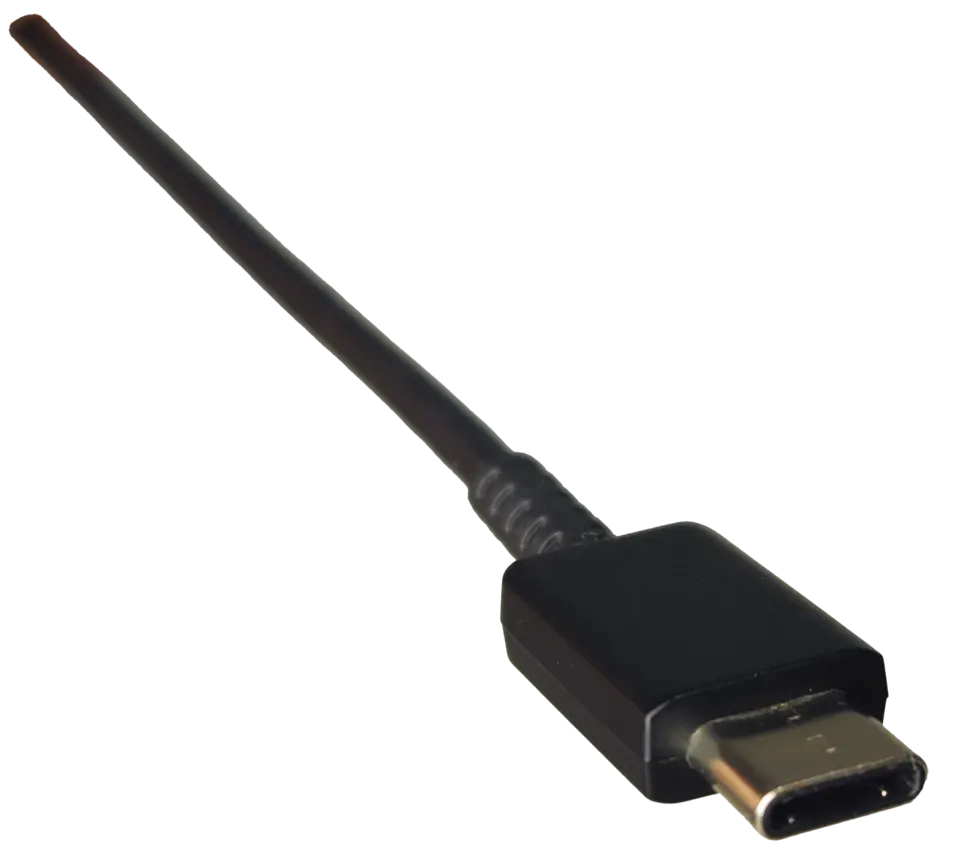
Being able to charge your laptop with a USB-C cable does not mean the same cable will send video to a monitor. Although the connectors may look the same, the functions supported by the cables and device ports can differ.
Check Your Computer's Port First
If your computer has multiple USB-C ports, they might not all perform the same function. Check the user manual to see which port supports an external display. Changing the cable in a port that does not support video output will not solve the issue.
Try a Cable Specified for Display Support
If the cable packaging only mentions charging power, this information alone does not indicate display support. If you have a cable that came with your monitor, try that first. Also, check that the correct display input is selected in the monitor's menu.
Remove the Hub
If you are using a hub, try connecting the monitor directly to the computer first. If the display works this way, try the hub again with the same cable. Changing only one component at a time makes it easier to identify whether the problem lies with the port, the cable, or the hub.
When changing the cable, keep the monitor input the same so you can understand which change is effective.