
Tips for Improving Performance During Screen Recording on PC
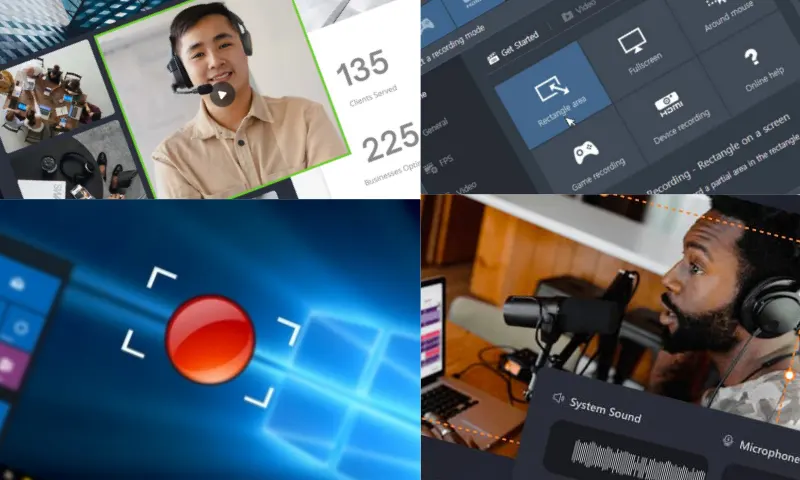
How to Add Audio During the Screen Recording Process on PC?
There are several tips to improve performance during the screen recording process on PC. Keeping the resolution and frame rate low during screen recording can boost performance. Lower resolution and FPS (frames per second) require the computer to process less. Closing unnecessary programs running in the background during screen recording allows the computer to dedicate more resources to the recording process. Some screen recording software can utilize hardware accelerators for the recording process. This can improve performance by reducing the computer's CPU load. If you are looking for software to record your screen on PC, you can visit the website https://recorditor.com/tr/.
What FPS Should Screen Recording on PC Be Done With?
To add audio during the screen recording process on PC, you can record ambient sounds using a microphone connected to your computer. Configure the audio recording options in the settings menu of your screen recording software. Within these settings, you can select your microphone and make necessary adjustments. Before starting the screen recording process on PC, enable the relevant button or option to start audio recording as well. Monitor your microphone's volume level during recording and make adjustments if necessary. The FPS (Frames Per Second) to be used during the screen recording process on PC can vary depending on the type of content you are recording and your intended use. 30 FPS and 60 FPS are the most commonly used frame rates. If the content you are recording does not involve fast movements or high-resolution graphics, 30 FPS may be sufficient. However, if you are recording fast-paced games or high-resolution graphics, 60 FPS can provide a smoother image. Higher FPS values require more processing power and can lead to larger file sizes. When choosing the FPS value, it is important to consider your computer's capabilities and your recording objectives.